AWS Networking Overview
UCSB Campus Cloud uses AWS Transit Gateway as the central hub for network connectivity. Every account that needs to reach the campus network receives a VPC attached to the Transit Gateway. Internet-only accounts use standalone VPCs without a Transit Gateway attachment.
- How to Connect to Campus
- Requesting Networking Changes
- Security Groups and NACLs
- DNS
- VPN Client Access (Off-Campus Laptops)
- Campus Network Firewall
- Troubleshooting Connectivity
- Network Architecture Details
- VPC Options
How to Connect to Campus
UCSB has two AWS Direct Connect connections and a Site-to-Site VPN between the AWS us-east-1 / us-west-2 regions and the UCSB campus network:
| Link | Type | Regions | Purpose |
|---|---|---|---|
| Direct Connect Circuit 1 | Private VIF | us-east-1, us-west-2 | Primary campus connectivity |
| Direct Connect Circuit 2 | Private VIF | us-east-1, us-west-2 | Redundancy / failover |
| Site-to-Site VPN | IPsec over internet | us-east-1, us-west-2 | Tertiary failover |
Routing preference: Direct Connect → Site-to-Site VPN. Failover is automatic and transparent to workloads. Traffic from your VPC to campus resources routes through the Transit Gateway — you do not need to configure this yourself.
Campus VPN not needed for cloud workloads
If your EC2 instance or Lambda is inside a VPC attached to the Transit Gateway, it can reach campus resources directly — you do not need to run the campus VPN on the server. The VPN is for your laptop, not for cloud workloads.Requesting Networking Changes
All persistent networking changes (new CIDR, new Transit Gateway attachment, firewall rule changes at the Transit Gateway level) require a ServiceNow ticket. Day-to-day Security Group and NACL changes within your account do not require a ticket.
Security Groups and NACLs
- You manage Security Groups for your own resources.
- Network ACLs are available but Security Groups are the preferred method.
- Service Control Policies (SCPs)
do not restrict Security Group rules, but best practices apply:
- Avoid
0.0.0.0/0inbound on sensitive ports (22, 3389, database ports). - Prefer inbound rules scoped to campus CIDR ranges for administrative access.
- Avoid
DNS
- Private hosted zones in Route 53 are available for internal service discovery.
- There is no UCSB-managed internal DNS zone shared by default. Each team manages its own private hosted zones.
- Contact the Cloud Team if you need a CNAME or A record in a UCSB-owned public DNS zone.
VPN Client Access (Off-Campus Laptops)
To reach resources in your Campus Cloud VPC from a laptop that is not on the UCSB campus network:
- Connect to the UCSB campus VPN on your endpoint.
- The VPN routes your traffic through the campus network → Direct Connect → Transit Gateway → your VPC.
Download and configure the VPN client at: UCSB Campus VPN
VPN is for your laptop, not for servers
Cloud workloads (EC2, Lambda, containers) inside a campus-connected VPC can reach campus resources directly through the Transit Gateway. The campus VPN is only for your laptop or workstation when working off-campus.Campus Network Firewall
Traffic from AWS to campus resources passes through the UCSB campus firewall. If you need to allow traffic from AWS to a specific campus host or service:
- Identify the AWS egress IP range (see Egress IP Addresses below, or ask the Cloud Team for the current list).
- Submit a firewall rule request through the appropriate campus IT process for your department.
Troubleshooting Connectivity
Cannot Reach a Campus Resource from AWS
- Verify the EC2 instance is in a campus-connected VPC (not an internet-only VPC).
- Check the Security Group allows outbound to the campus IP range.
- Verify the campus firewall allows inbound from the AWS egress IP range. Request firewall changes through your department IT if needed.
- Check that the campus host’s local firewall accepts traffic from the
10.226.0.0/16or10.227.0.0/16private ranges used by the Landing Zone.
Cannot Reach a Private IP in AWS from Your Laptop
- Confirm you are connected to the UCSB campus VPN.
- Confirm the resource’s Security Group allows inbound traffic from the campus
CIDR ranges (
128.111.0.0/16and169.231.0.0/16). - Confirm the VPC has a Transit Gateway attachment (Console → VPC → Transit Gateway Attachments).
- Ping or traceroute from your laptop to inspect where the path breaks.
- If all of the above are correct, the issue may be a campus host-based firewall or the campus Palo Alto UTM. Contact the Network Operations Center (NOC) for assistance.
High Latency Between Campus and AWS
- Direct Connect should show < 5 ms latency to us-west-2 and < 60 ms to us-east-1.
- Latency significantly above these values may indicate the Site-to-Site VPN failover path is in use. Check the AWS Health Dashboard and open a ServiceNow ticket if the issue persists.
Network Architecture Details
This section provides technical details about the Landing Zone network infrastructure for users who need them for firewall rules, troubleshooting, or vendor whitelisting.
Architecture Diagram
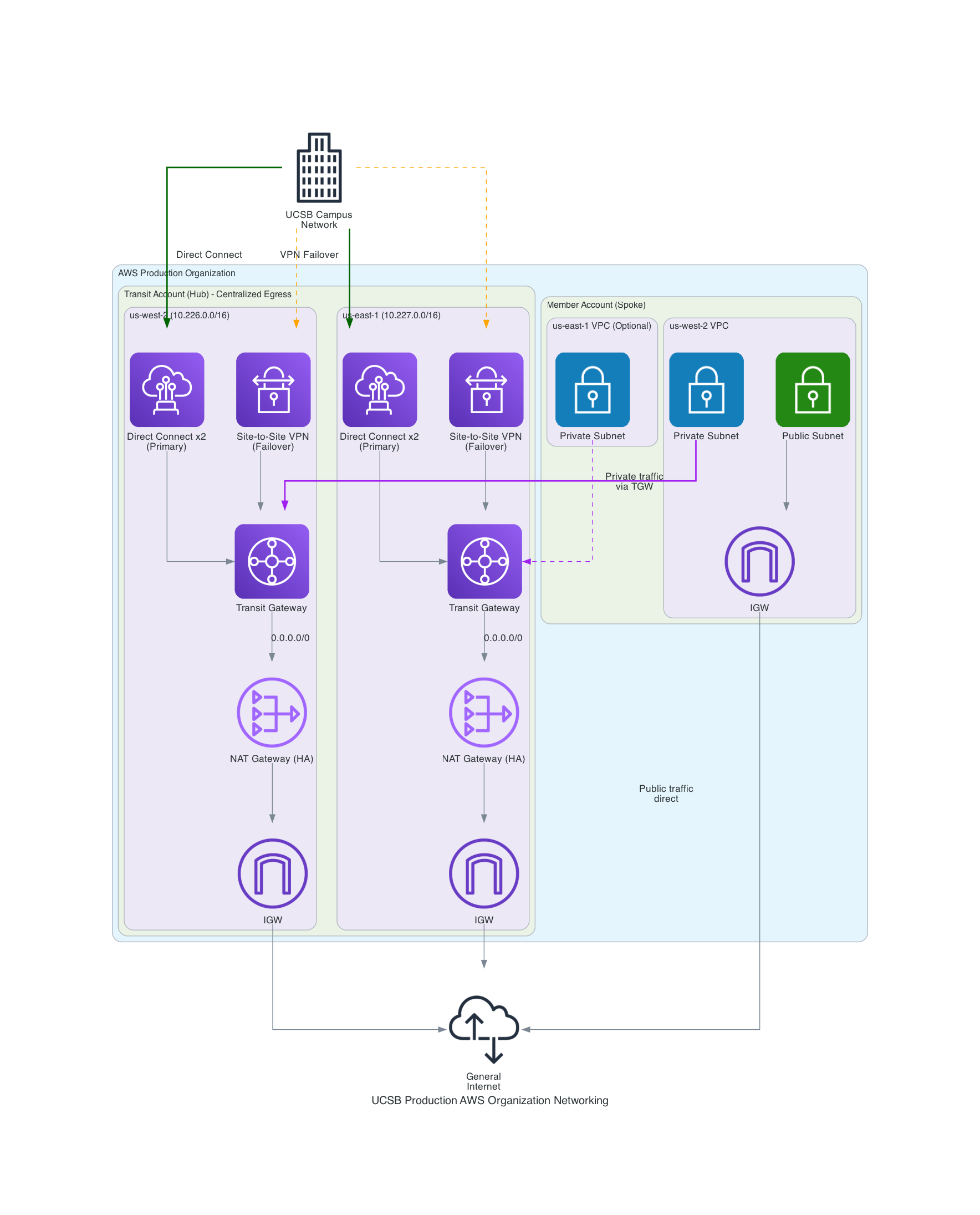
Regions and IP Address Space
The Landing Zone is deployed in two regions:
| Region | Location | Private CIDR Allocation |
|---|---|---|
| us-west-2 | Oregon | 10.226.0.0/16 |
| us-east-1 | N. Virginia | 10.227.0.0/16 |
These RFC 1918 private addresses are routed between AWS and the UCSB campus network. Individual account VPCs receive a smaller block (e.g., /24) from these ranges via the Cloud Team’s IPAM system.
Do not manually assign a CIDR that overlaps with these ranges or with the
UCSB campus address space (128.111.0.0/16, 169.231.0.0/16). Conflicts will
break routing.
How Traffic Flows
- Public subnet traffic in your account goes directly through the account’s Internet Gateway — it does not travel through the Transit Gateway.
- Private subnet traffic routes to the Transit Gateway, which sends it
either to:
- The NAT Gateway (for internet-bound traffic), or
- Direct Connect / VPN (for campus-bound traffic).
Egress IP Addresses
Traffic leaving your private subnets to the internet appears to come from centrally managed NAT Gateway IP addresses. These IPs can change but rarely do.
These IPs may change without notice
NAT Gateway Elastic IPs are dynamically allocated. If you need the current list for vendor whitelisting or firewall rules, confirm with the Cloud Team via a ServiceNow ticket.Current NAT Gateway IPs (us-west-2):
44.231.186.20444.232.156.254
Campus-side VPN endpoint (us-west-2): 128.111.38.197
If you need IPs for other regions or the most current values, open a ServiceNow ticket.
Public IP Addresses
- Internet-facing resources (load balancers, EC2 instances in public subnets) can use Elastic IPs or auto-assigned public IPs.
- If your workload needs a persistent public IP, allocate an Elastic IP in your account.
- IPv6 is not currently available in Campus Cloud accounts.
VPC Options
When your account is provisioned, the Cloud Team creates a VPC using one of two product types from the Service Catalog:
| VPC Type | Subnets | Campus Network Access | Use When |
|---|---|---|---|
| Simple VPC with Campus Connectivity | Yes — multi-AZ; you choose a family (below) | Yes (via Transit Gateway) | Most workloads — running servers, databases, or anything needing network connectivity |
| Advanced VPC | No — an empty VPC you build out yourself | Yes (Transit Gateway foundation) | You need full control over your network design from scratch |
Specify which type you need in your account request or ServiceNow ticket. You can have both types in the same account.
VPC Families
When you launch the Simple VPC product, choose a family that determines the number of subnets, their type, and the total IP address space:
| Family | Subnets | IPs | Subnet Type | Availability Zones |
|---|---|---|---|---|
| n1.small.public | 1 | 32 | 1 public | 1 |
| n1.small.private | 1 | 32 | 1 private | 1 |
| n1.medium.public | 1 | 64 | 1 public | 1 |
| n1.medium.private | 1 | 64 | 1 private | 1 |
| n1.large.public | 1 | 128 | 1 public | 1 |
| n1.large.private | 1 | 128 | 1 private | 1 |
| n2.medium.public | 2 | 64 | 2 public | 2 |
| n2.medium.private | 2 | 64 | 2 private | 2 |
| n2.medium.mixed | 2 | 64 | 1 public, 1 private | 2 |
| n2.large.public | 2 | 128 | 2 public | 2 |
| n2.large.private | 2 | 128 | 2 private | 2 |
| n2.large.mixed | 2 | 128 | 1 public, 1 private | 2 |
| n4.large.mixed | 4 | 128 | 2 public, 2 private | 2 |
| n2.xlarge.public | 2 | 256 | 2 public | 2 |
| n2.xlarge.private | 2 | 256 | 2 private | 2 |
| n2.xlarge.mixed | 2 | 256 | 1 public, 1 private | 2 |
| n4.xlarge.mixed | 4 | 256 | 2 public, 2 private | 2 |
Multi-AZ families (n2.* and n4.*) spread subnets across two Availability Zones
for higher availability. If you’re not sure which family to pick, n2.large.mixed
is a good general-purpose starting point.